Updated September 27, 2026 · Smart TV setup guide
Quick answer: To set up IPTV on LG TV, identify your TV model and webOS version, find a compatible player in the TV’s app store, add credentials for content you are authorized to watch, and test playback. A player is a tool for opening a source; installing it does not automatically provide channels or a subscription.
LG televisions vary by model year and country, and their app menus can look different. The most reliable starting point is the app catalog on your own television. LG explains that app compatibility depends on the TV model and region. Before choosing a player, understand the difference between the TV, the player app and the content source. For broader context, see our introduction to IPTV, or the technical overview of Internet Protocol television on English Wikipedia.
Table of contents
IPTV on LG TV: what you need before setup
Find the exact model number in your TV settings or on the label, then confirm that the television can open another internet app. Update its software if an update is available. You may need an LG account and enough free storage to install an app. App availability can differ by country, model and webOS version, so instructions for somebody else’s screen are a guide rather than a compatibility guarantee.
- Model and software: note both before searching the app store.
- Network: use a reliable connection; Ethernet can help when Wi-Fi fluctuates.
- Compatible player: check whether it accepts the format your authorized provider supplies.
- Content access: keep your playlist URL, account details or activation code private.
If you already use an app such as Smart IPTV, our separate Smart IPTV setup guide covers that specific player’s flow. This article explains the decisions common to many LG models and players.
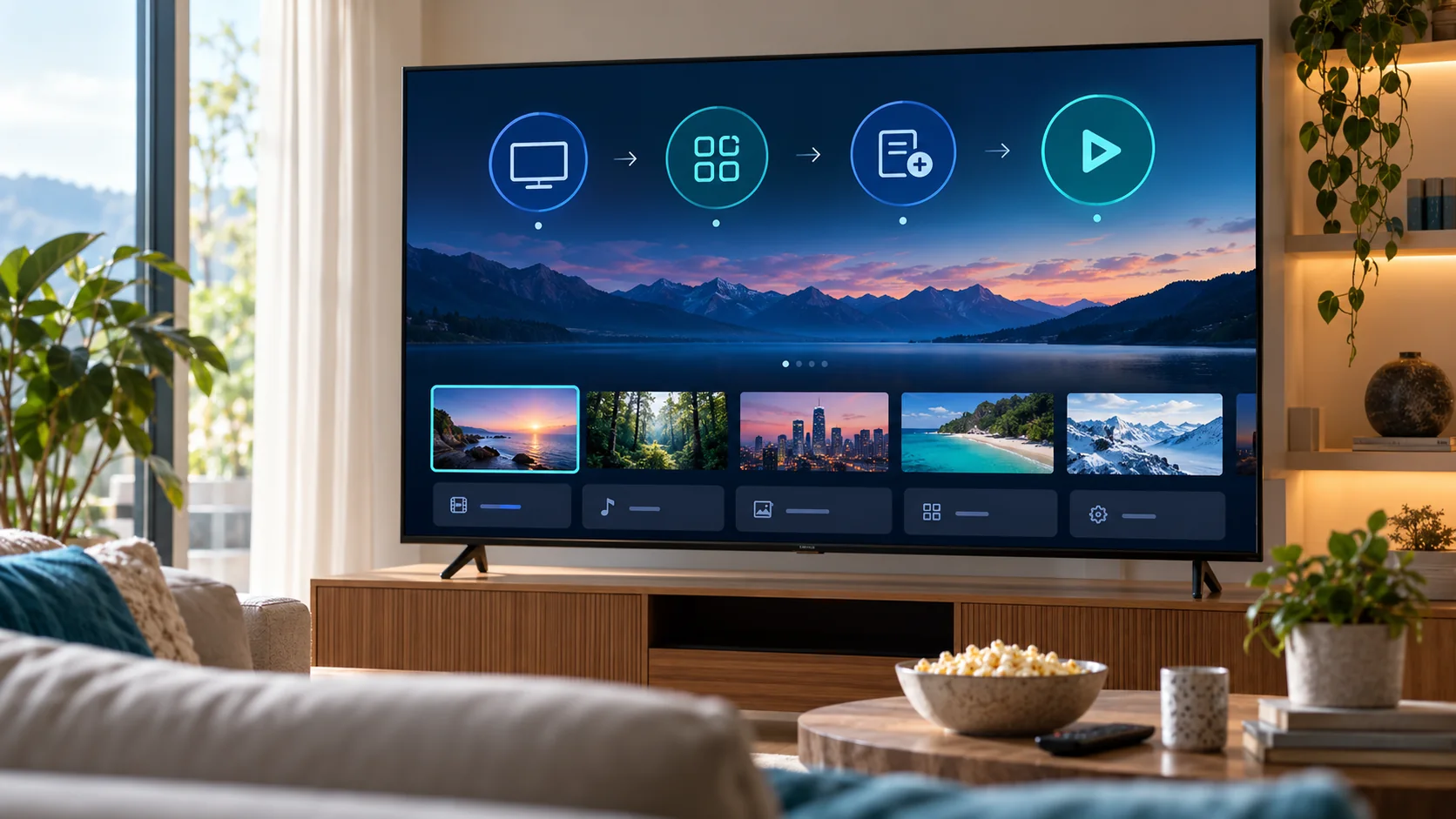
How to set up IPTV on LG TV in four steps
1. Check the TV model, region and internet access
Open Settings and record the model number. Test a familiar video app to check that the television is online. If no apps connect, investigate the network first. LG’s store listings can vary by location and device. Avoid assuming that an app shown in a phone app store will run on webOS.
2. Find an available player in the TV app store
Press Home on the remote and open Apps or LG Content Store, depending on your software version. Search for a player, inspect its description and confirm compatibility with your TV. Compare support for an M3U playlist, account sign-in or other access methods, plus subtitles, electronic program guide (EPG), remote control navigation and any activation fee. Install the app through the TV’s normal app interface.
3. Add your authorized content source
Launch the player and follow its option for adding a playlist, account or activation code. Enter the information exactly as supplied. Some players use a companion website to link a device; verify the app’s own instructions before entering any identifier there. Do not post a playlist URL or password in a public comment, screenshot or support forum. The player and the content service may have separate prices and terms.
4. Test channels, sound and the program guide
Try a few authorized streams from different categories. Check audio, subtitles and EPG where supported. If one stream fails while others work, ask the content provider about that stream. If every online app struggles, examine the TV connection instead. This simple separation saves time when setting up IPTV on LG TV.
How to choose an IPTV player for LG webOS
Start with availability on your exact TV. Then look for a player that accepts your source format, offers readable navigation and explains fees clearly. A paid app does not mean it includes licensed channels. Likewise, the phrase “best IPTV player” is not useful without knowing your model, region and preferred sign-in method. If you have several devices, compare setup and interface needs before buying an activation for one TV.
Some applications allow more than one playlist or offer an EPG URL, while others focus on a simple channel list. Fewer features can be preferable if the remote is easier to use. To understand how device choice and plan terms fit together, see our guide to IPTV subscriptions and compatible devices.
IPTV on LG TV not working? Diagnose the cause
The app is missing from the store
Check spelling, model, service country and system updates. The app may not be offered for your model or region. Choose another compatible app rather than relying on unverified installation files or instructions intended for Android TV. LG’s official guidance notes that availability can vary with the television and region.
The playlist is empty or login fails
Recheck the URL, username and password for typos and accidental spaces. Confirm that the provider supports your chosen player and that the authorized access is active. If your app accepts M3U but your provider offers another access method, you may need a different player. Never share the full URL publicly when seeking help.
Playback buffers or the EPG is blank
First run another streaming app. If it buffers too, restart the router and TV, and compare Wi-Fi with a wired connection. If only one player has problems, update or reinstall it using the official store. EPG data can be a separate feed, so a blank guide does not always mean that the stream itself is broken. Check the source settings and ask your provider about missing data.
Frequently asked questions about IPTV on LG TV
Does an LG TV come with IPTV channels?
No. A player normally does not include a channel package. Use sources for which you have the necessary rights and follow the app’s instructions.
Can I use an M3U playlist on an LG TV?
Yes, if an available player supports M3U and you have permission to use the playlist. The format alone does not tell you whether the underlying content is licensed or reliable.
Is an Android APK compatible with LG webOS?
Do not assume so. LG webOS and Android TV use different app ecosystems. Check the LG app catalog on your own device for supported software.
What if my LG TV is too old for the player I want?
Check whether another player is offered for that model. An external streaming device connected over HDMI may be an option if you verify its apps and terms before purchase.
Final checklist for IPTV on LG TV
Check the model and internet connection, pick a player from the TV’s available apps, add an authorized source, and test playback and EPG. Treat app compatibility, service rights and network quality as separate questions. That approach makes IPTV on LG TV easier to set up and easier to troubleshoot. For site details, visit the PrimeStream TV 4K homepage.