IPTV Smart TV: watch it on the TV you already own
To watch IPTV on a Smart TV you only need an IPTV app from your TV’s official store and the login we send you. This guide shows the right app for Samsung, LG, Roku, Android TV, Hisense, Fire TV and Apple TV, the setup steps, and how to stop buffering. Test it free on your own TV for 24 hours.
Table of Contents
What do you need for IPTV on a Smart TV?
You need three things: a Smart TV with an app store, a stable internet connection (about 15 Mbps for Full HD and 25 Mbps or more for 4K) and an IPTV player app with your login.
- A compatible Smart TV: Samsung (Tizen), LG (webOS), Android TV or Google TV (Sony, TCL, Hisense), VIDAA (Hisense, Toshiba) or Roku TV.
- Stable internet: an Ethernet cable is best; on Wi-Fi, use the 5 GHz band.
- An IPTV app from the official store and your Xtream Codes or M3U login.
Is your TV older or not “smart”? Plug an Amazon Fire TV Stick or an Android TV box into any HDMI port and you get the same apps. See IPTV on Firestick or compare devices in our best IPTV box guide.
IPTV on Samsung, LG, Roku, Android TV and more
Every TV brand has its own app store. These are the IPTV apps our support team installs most often in US homes.
Samsung Smart TV
Tizen OS. Install IBO Player, Hot IPTV or Smart IPTV from Samsung Apps, then send us the MAC address shown on screen. Guide: Smart IPTV on Samsung.
LG Smart TV
webOS. Install IBO Player or Hot IPTV from the LG Content Store. Full steps in our IPTV on LG TV guide.
Roku TV & sticks
Add Hot Player from the Roku Channel Store, or cast the IPTV app from your phone with screen mirroring.
Android TV / Google TV
Sony, TCL, Hisense Android and NVIDIA Shield: install TiviMate or IB Player from Google Play. See the TiviMate guide.
Fire TV & Fire TV Smart TVs
Insignia, Toshiba and Amazon Fire TV models: use Downloader with code 395800 for Hot Player.
Apple TV
Install Hot Player or IBO Pro Player from the App Store on tvOS for a native TV guide.
Store links and Downloader codes for every device are on our IPTV app and setup guides page.
How to install IPTV on your Smart TV
- Connect the TV to the internet, ideally with an Ethernet cable.
- Open your TV’s app store (Samsung Apps, LG Content Store, Google Play, Roku Channel Store or VIDAA Store).
- Search and install the IPTV app recommended for your brand.
- Open the app and note the MAC address and device key if it shows them.
- Send us the MAC or enter your Xtream Codes login. We activate the player license for you at no extra cost.
- Restart the app, wait for the channels and TV guide to load, and start watching.
Prefer a hand? Message us on WhatsApp and we set it up with you, live, during your free IPTV trial.
Why IPTV buffers on a Smart TV and how to fix it
Most buffering on Smart TVs comes from the home network, not the service. Built-in TV Wi-Fi chips are often weaker than a phone’s. Try these fixes in order:
| Problem | Likely cause | Fix |
|---|---|---|
| Freezes every few minutes | Weak 2.4 GHz Wi-Fi | Use Ethernet or 5 GHz Wi-Fi |
| 4K stutters, HD is fine | Speed under 25 Mbps | Pick the HD/FHD version of the channel |
| Channels load slowly | Full app cache | Clear the app cache and restart the TV |
| TV guide shows wrong times | Time zone setting | Set your US time zone in the app |
| “Device not activated” | Player license missing | Send us the MAC address to activate |
Keeping your TV firmware updated also helps, on Samsung and LG especially. For background on how connected TVs work, see Smart TV on Wikipedia.
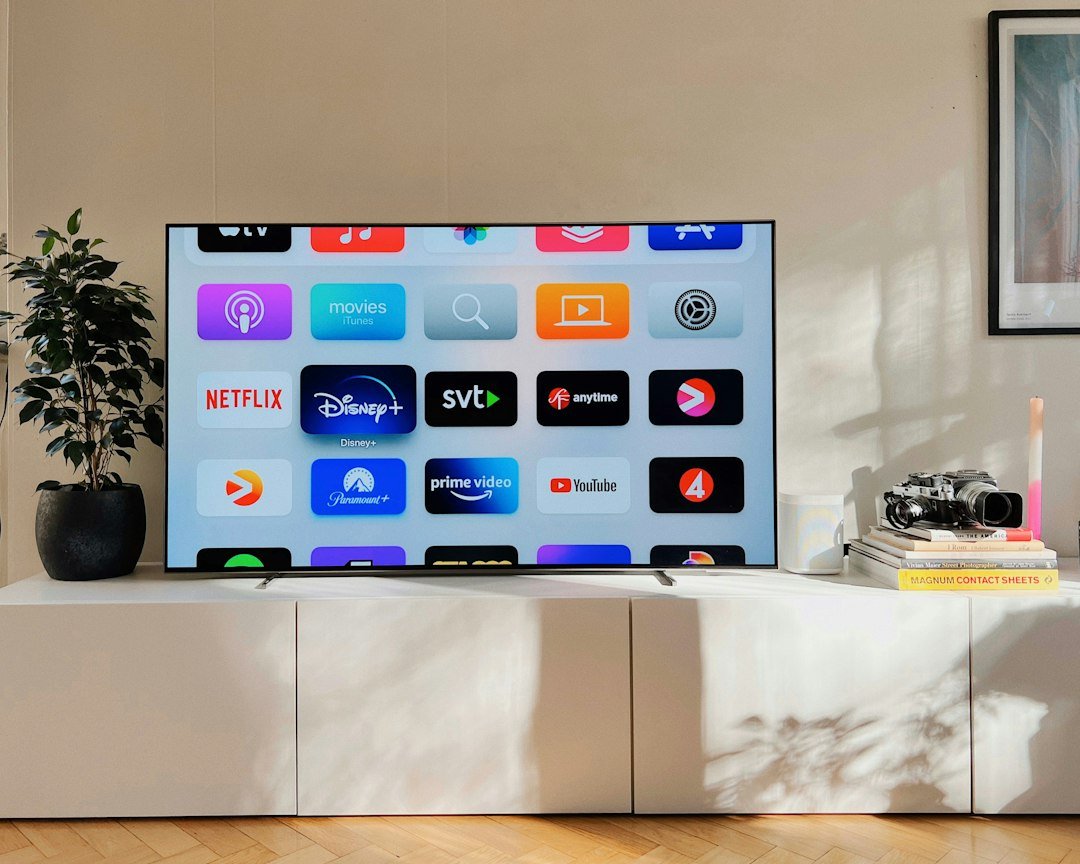
Is my TV compatible with IPTV Smart TV apps?
Most connected TVs sold in the US in the last several years can run an IPTV player. The quickest way to check is to open your TV’s app store and search for one of the players listed above. If it appears and installs, your TV is ready.
If you can’t find any player, check three things:
- The system name: look in Settings > About or Support. Tizen, webOS, Android TV, Google TV, VIDAA, Roku OS and Fire OS are all supported.
- Software updates: install the latest TV update; older firmware sometimes hides newer apps in the store.
- The store region: the TV’s country setting should be the United States, or some apps will not appear.
If your TV is too old for any player, a streaming stick is a low-cost fix and usually runs faster than an aging TV system anyway.
IPTV Smart TV setup tips by brand
Samsung
Samsung TVs use their own store, so Android apps are not available. Choose a player built for Tizen, open it once to see the MAC address and send it to us. After activation, restart the app. If the list looks empty, go to the app’s settings and reload the playlist. Looking for IPTV Smarters? See IPTV Smarters on Samsung TV.
LG
LG webOS works much like Samsung: install from the LG Content Store, note the MAC address and let us activate it. LG remotes with a pointer make browsing long lists easier; use the scroll wheel to move through groups quickly.
Hisense and Toshiba (VIDAA)
VIDAA models have a smaller app selection. If your preferred player is missing, a streaming stick on a spare HDMI port is the most reliable option.
Roku
Roku does not allow installing apps from outside its store, so choose a player available in the Roku Channel Store. Another option is screen mirroring from an Android phone, which is fine for occasional viewing but drains the phone’s battery during long games. Our full IPTV on Roku guide covers every method step by step.
Sony, TCL and other Google TV models
These TVs run Android TV or Google TV, which gives you the widest choice of players, including TiviMate. They are often the easiest IPTV Smart TV setup of all.
Smart TV app or streaming stick?
| Built-in TV app | Streaming stick or box | |
|---|---|---|
| Extra cost | None | Low one-time purchase |
| Speed | Good on recent TVs, slower on older ones | Usually faster menus and zapping |
| App choice | Depends on the TV brand | Wide, especially on Android TV |
| Updates | Stop after a few years | Easy to replace the stick later |
| Ethernet | Usually built in | Needs an adapter on most sticks |
Our advice: start with the TV’s own app during the free trial. If menus feel slow or your favorite player is not available, add a stick before you buy a plan.
Best picture and sound settings
Live TV over the internet looks its best with a few tweaks to the TV itself:
- Picture mode: use “Movie”, “Cinema” or “Filmmaker” mode for films and series, and “Standard” or “Sports” for live games.
- Motion smoothing: turn it down or off for movies to avoid the “soap opera” look; keep it low for fast sports if you like a smoother image.
- Sharpness: lower it; high sharpness makes compression artifacts more visible.
- 4K and HDR: pick 4K versions of channels only when your TV and connection support them.
- Sound: if you use a soundbar, connect it through HDMI ARC or eARC so the TV remote controls the volume.
IPTV Smart TV in every room
Many households have a big TV in the living room and smaller ones in the bedroom or kitchen. You can install the player on all of them. The number of TVs that can play at the same time depends on your plan: one screen on a single plan, up to five on our multi-device plans. Each TV can have its own favorites and parental PIN.
Compare options on our IPTV plans page, or test two TVs at once during your free trial so you see how your network handles it.
Getting a strong connection to the TV
The TV is usually the device furthest from the router, often behind a wall or inside a cabinet. That is why a connection that feels fast on your phone can still struggle on the big screen. Here are the options, from best to simplest:
- Ethernet cable: the most stable choice. Even a long flat cable along the baseboard beats Wi-Fi for live sports.
- Mesh Wi-Fi: place one mesh point in the same room as the TV and, if it has a network port, connect the TV to it with a short cable.
- Powerline adapters: send the internet signal through your electrical wiring; results vary by house, but they often help in older homes.
- 5 GHz Wi-Fi: if you must use wireless, connect the TV to the 5 GHz network and keep the router out in the open, not in a closet.
A quick test: run the speed test inside the TV’s own browser or network settings, not on your phone. If the TV shows less than 15 Mbps, improve the connection before blaming the stream.
Using the TV remote like a cable box
Most players are designed for a normal TV remote, so you do not need a keyboard or mouse. A few habits make daily use feel just like cable:
- Press OK while watching to open the channel list without leaving the program.
- Use channel up and down to move through your favorites group.
- Long-press OK or the menu button on a channel to add it to favorites.
- Open the guide to see what is on now and next, and to start catch-up on supported channels.
- On voice remotes, ask the TV to open the player app directly.
Older relatives often find it easiest if the app opens straight into favorites. Set that once in the player’s settings and the TV starts on the channels they know.
Keeping the app and the TV up to date
Updates fix bugs and keep apps compatible with new streaming formats. Turn on automatic updates in the TV’s settings, and open the player’s own settings once a month to check for a new version. After a big TV update, restart the TV fully by unplugging it for a minute; this clears memory and often solves slow menus. If an update ever changes how the app looks or a login stops working, message us and we walk you through it.
Parental controls on the family TV
The living room TV is the one children use most, so it is worth five minutes of setup. In the player’s settings, create a parental PIN and lock the categories you do not want children to open. Adult content is never active unless an adult requests it, and it always stays behind a PIN. Many TVs also have their own lock for apps, which you can use as a second layer so the player only opens with a code.
For younger kids, a favorites group with only cartoons and family channels works well: they press OK, see the channels they know and nothing else. If you want help setting this up, our team can guide you on WhatsApp.
Your first evening with IPTV Smart TV apps
Once the channels load, spend a few minutes making the TV yours. Open the guide and set your time zone. Add your top ten channels to favorites. Try one movie from the on-demand library and one live channel in 4K if your screen supports it. Then switch to a busy live event in the evening, when networks are at their most crowded, and watch for at least half an hour.
If everything plays smoothly at that hour, you can be confident it will work on game day. If it does not, tell us what you saw and when. We can change the server, adjust the player settings or suggest a network fix while your free trial is still running.
A short message with your TV brand, the app you use and the channel you were watching is all we need to start, and we usually reply within minutes, day or night.
IPTV Smart TV FAQ
Almost any Smart TV made in the last 6 to 7 years works: Samsung, LG, Android TV, Google TV, Roku TV, VIDAA and Fire TV models. Older TVs can use a Firestick or Android box.
IBO Player and Hot IPTV are the most reliable on Samsung Tizen TVs. Smart IPTV also works with an M3U playlist.
Yes. Install Hot Player from the Roku Channel Store, or mirror an IPTV app from your Android phone to the Roku.
Not if your TV is a Smart TV with an app store. If it isn’t, a Firestick or Android TV box plugged into HDMI is enough.
Yes, with a player from the Roku Channel Store. If your preferred player is not there, screen mirroring from an Android phone works for occasional viewing.
Some Smart TV players ask for a yearly activation. With our paid plans we activate the player license for you; just send us the MAC address shown in the app.
Yes. Plug a streaming stick or an Android TV box into any HDMI port and you get the same players as a Smart TV.
Usually because of Wi-Fi. Use an Ethernet cable or 5 GHz Wi-Fi, clear the app cache and check you have at least 15 Mbps for Full HD.