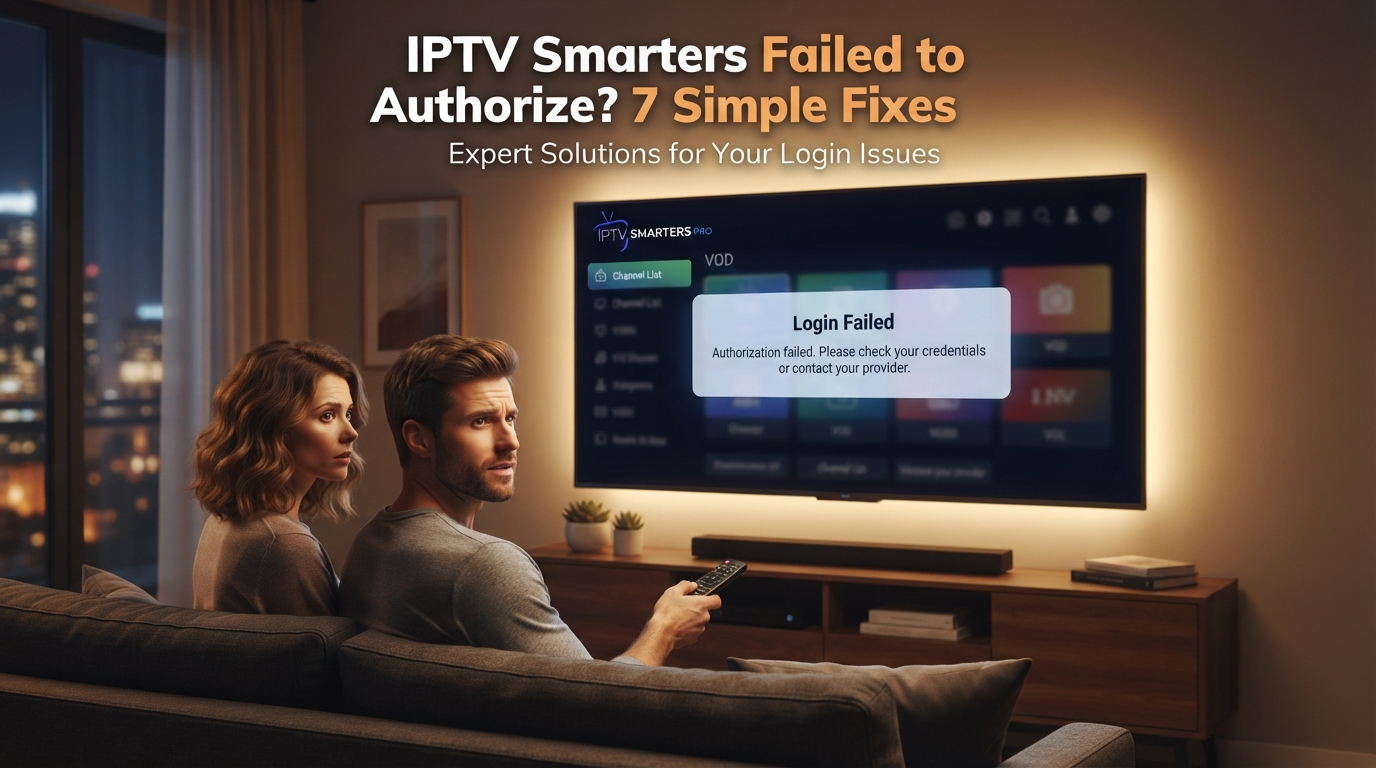
IPTV Smarters failed to authorize is a frustrating login message, but it does not automatically mean your TV is broken. Start with the access details, account status, and the setup approved for your device. These 7 simple checks help you identify what to ask support before changing apps or buying another subscription.
Quick answer: verify the username, password, server address, and login method; confirm that the account is active and supported on your platform. If the error continues, send the exact message and device details to your provider. Reinstalling the app does not renew an expired account.
Table of Contents
IPTV Smarters failed to authorize: what does the message mean?
The message tells you that the app did not complete authorization for the requested access. It does not identify a single cause by itself. A mistyped login, an outdated address, an inactive account, a connection problem, or a device-specific compatibility issue can require different checks.
Do not assume that buying another app license will fix an account problem. A player provides the interface; your content provider supplies the access. For background, see the Wikipedia definition of IPTV. Our beginner’s guide to IPTV explains the service and player distinction in more detail.
Before changing settings, record the exact error text, device model, operating system, and app name. Similar-looking players and different platform versions may not use the same login process. Those details help support identify which instructions apply.
What to prepare before fixing an authorization error
Find the original access message from your provider and check its date. Separate the username, password, server address, and playlist link. Do not put a complete playlist URL into a field that asks only for a server address unless your provider specifically instructs you to do so.
Keep credentials private. A screenshot of the error is useful, but hide passwords, account identifiers, and personal playlist URLs before sharing it. Never paste your login into public comments or an unrelated website claiming to repair access.
Check whether the problem happens before the channel list loads or only when a video starts. A login error and buffering during playback are different symptoms. This guide addresses authorization first; it does not treat every playback failure as the same issue.
IPTV Smarters failed to authorize: 7 simple checks
1. Verify the username and password
Compare every character with the information your provider supplied. Look for leading or trailing spaces, accidental capitalization, and characters such as zero and the letter O. Copying can help, but inspect the pasted result before submitting it. Avoid repeatedly guessing passwords.
2. Confirm the server address
Use the address approved for your device and app version. Preserve the protocol, domain, and port when provided. Do not invent a port or change HTTP to HTTPS just because it looks preferable: ask the provider for the correct address if anything is unclear.
3. Check the login method
A playlist link and a username/password login are different inputs. Choose the method supported by your version and the access details you received. For the initial setup sequence, read our IPTV Smarters Pro setup guide. Follow the instructions for your actual platform.
4. Ask whether the account is active
Confirm the access period, activation status, and any account restrictions with the provider. A saved login can remain on the screen after a test expires. An app reinstall cannot extend an account or activate a subscription that has not been enabled.
5. Confirm simultaneous connection limits
Check how many sessions your plan allows and close unnecessary playback sessions. The exact response to excess usage depends on the provider, so do not assume every authorization error comes from a connection limit. Ask support to confirm the current account state.
6. Check the device connection and app version
Confirm that the device can reach ordinary online services, then restart the app and device. Check the appropriate official app store for an available update. Change one thing at a time; otherwise, you will not know which step affected the result.
7. Escalate with the details support needs
If IPTV Smarters failed to authorize still appears, send the exact message, device model, app version, and the time of the attempt. Ask whether there is a service issue or a different approved endpoint for your platform. Share account details only through the provider’s verified private support channel.
Match the symptom to the next action
Use this table to keep troubleshooting focused. The checks are diagnostic steps, not guarantees that a particular setting is responsible. Record the outcome and return to support with evidence if the problem continues.
| What you see | What to check | Useful next action |
|---|---|---|
| Error immediately after login | Credentials, login method, approved address. | Compare with the provider’s latest instructions. |
| Previously working access stops | Account validity and current service status. | Ask support to confirm account activation. |
| Only one device fails | Platform version and device-specific setup. | Provide the model and compare approved settings. |
| List loads but video fails | Playback and connection conditions. | Report the affected content separately from login. |
| Test login stops working | Confirmed start and expiry time. | Ask whether the test period has ended. |
If the same access works on another approved device, that is useful information, but it does not prove that the first device is faulty. Platform differences, settings, and permitted session counts can still affect the comparison. Do not run multiple sessions beyond your plan’s allowance.
What not to change blindly
When IPTV Smarters failed to authorize appears, avoid immediately deleting all app data. You may lose saved settings or playlists without addressing the cause. Keep a secure copy of the setup details first, and follow platform-specific support instructions before resetting anything.
Do not use a VPN as a universal authorization fix or assume a provider supports every VPN connection. If the access works differently across networks, report that observation to support. Keep the investigation focused on approved access rather than bypassing restrictions.
Do not send money to an unrelated activation service simply because the error mentions authorization. Confirm who operates the app, who supplies the contents, and what each payment covers. A clear explanation of these roles is more useful than a promise of a one-click fix.
How to use an IPTV trial after checking the error
If you want to evaluate PrimeStream TV 4K, use the Start 24H Free Trial button at the top of this article. It opens the same WhatsApp contact shown on our homepage. Tell the team your device model and app version, and ask whether the proposed setup is supported.
Opening WhatsApp does not activate access or send a message automatically. Submit the request yourself, then wait for the setup instructions and confirmed start time. A trial from a different provider is a separate account; it does not renew or repair an existing provider’s credentials.
Once authorized, test several examples of the content you actually watch. Check picture, audio, navigation, and program information where available. Use your intended TV and normal home connection. A working login is the beginning of the evaluation, not proof of long-term picture quality.
Compare the current offers on the PrimeStream TV 4K homepage. Confirm the access duration, total price, allowed devices, and support arrangements before selecting a plan. Our IPTV provider checklist covers the broader purchase questions.
Choose services that explain their content permissions and conditions clearly. The availability of an app or a playlist does not itself establish permission to distribute every listed program. Evaluate the service terms as well as the technical setup.
A quick checklist before you contact support
Prepare your device model, operating system, app version, exact error text, and the approximate time of the attempt. State whether this is a first login, a previously working account, or a trial. Explain which checks you already completed so support does not need to repeat them.
Use a short message such as: “I see an authorization error on my living-room TV. I checked the login details and the approved server address. Please confirm whether my access is active and supported on this app version.” Add the model and screenshot privately.
If IPTV Smarters failed to authorize persists after support confirms the details, ask for the next approved diagnostic step. Keep a record of changes and results. This makes troubleshooting clearer and helps distinguish an account issue from an application or network problem.
IPTV Smarters failed to authorize: FAQs
What does IPTV Smarters failed to authorize mean?
It means the app did not complete authorization for the requested access. The message alone does not identify the cause; verify credentials, the approved server address, account status, and platform compatibility.
Can reinstalling IPTV Smarters fix an expired account?
No. Reinstalling an app does not renew or activate a provider account. Ask the provider to confirm the access period and status.
Should I change the server port or protocol?
Use the exact address approved by your provider for your platform. Do not invent a port or change the protocol without confirmation.
Why does one device work while another fails?
Different app versions, device settings, approved endpoints, or session limits can affect access. Share both device models and the results with support.
How do I request the PrimeStream TV 4K trial?
Click Start 24H Free Trial at the top of the article. WhatsApp opens our homepage contact. Send your device model and app version, then confirm compatibility, setup instructions, and the trial start time.
Does an app license include TV channels?
Do not assume so. A player license and access to content are separate. Check what each payment includes before purchasing.
Does a successful trial guarantee permanent 4K playback?
No. Picture quality depends on the source, device, connection, and conditions during viewing. A trial evaluates performance during its access period.