Want IPTV that works on your TV? Ask us on WhatsApp or request the free 24-hour trial. See plans from $14/month →
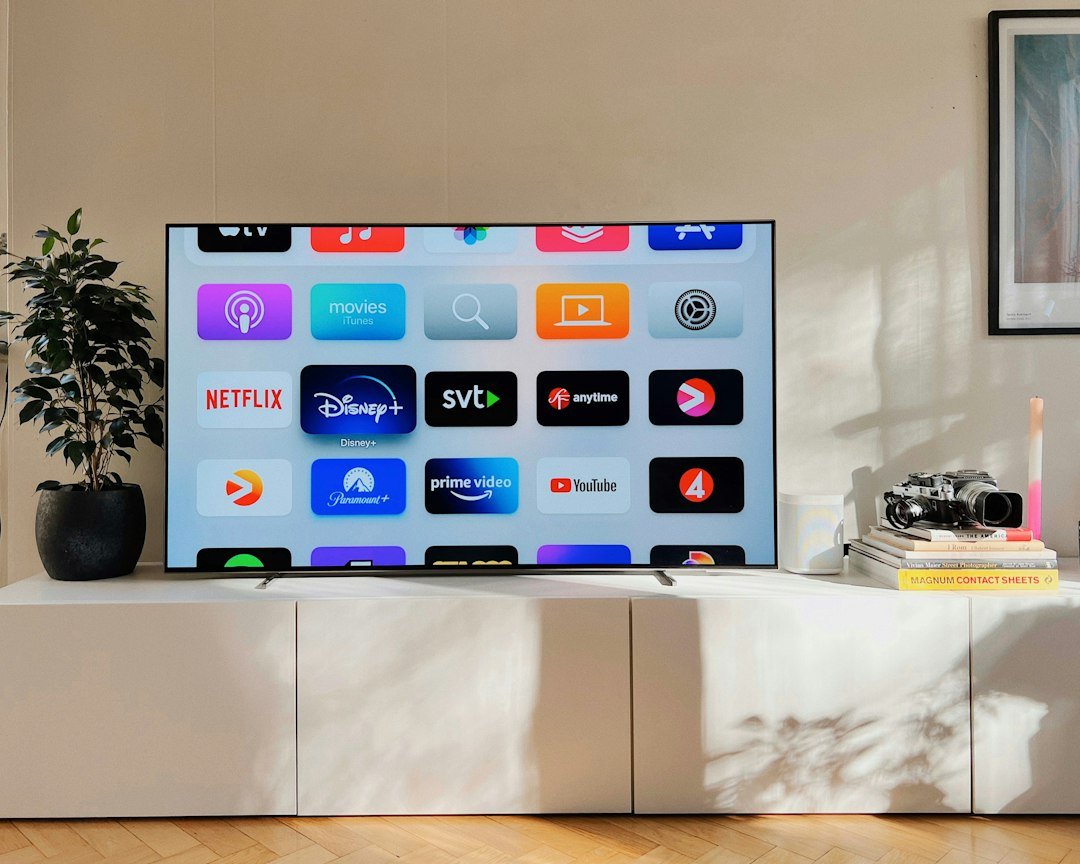
1. What Is IPTV Smarters Pro?
IPTV Smarters Pro is a media player designed for IPTV subscriptions. It turns the login from your provider into a clean menu with four main sections: Live TV, Movies, Series and Catch-up, plus a TV guide (EPG) for live channels. The interface is simple and works the same way on a phone, a tablet and a TV, which is why it is often the first player new customers try.
Like every IPTV player, the app itself contains no channels. It does not sell subscriptions and it does not come with content. Everything you watch comes from the service you add to it. If the difference between a player and a provider is new to you, our guide on what IPTV is explains how the pieces fit together, and the Wikipedia overview of IPTV covers the technology itself.
Because the player and the service are separate, you can keep the same app if you ever change provider, and you can use the same login in other players such as TiviMate whenever you like.
2. Which Devices Support IPTV Smarters Pro?
IPTV Smarters Pro is available on more platforms than most players. Availability can change by store and region, so check before you plan your setup:
| Device | How to get it | Notes |
|---|---|---|
| Amazon Fire TV Stick and Fire TV | Downloader app | Install from the developer’s official link |
| Android TV, Google TV, Android boxes | Google Play Store | Runs well on most models |
| Android phones and tablets | Google Play Store | Ideal for watching on the go |
| iPhone, iPad, Apple TV | Apple App Store | The Smarters app may be listed under a slightly different name |
| Windows and Mac computers | Developer’s official website | Good for watching at a desk |
| Samsung, LG, Roku TVs | Varies by model | IBO Player or Hot IPTV are usually easier |
For Samsung, LG and Roku televisions, our IPTV Smart TV guide lists the players that work best on each brand, and our guide to IPTV Smarters on Samsung TV explains what to do when the app is missing.
3. How to Install IPTV Smarters Pro on Firestick
On Fire TV devices the app is installed with the free Downloader app. It takes about five minutes:
- Install Downloader. Search for “Downloader” on the Fire TV home screen and install it from the Amazon Appstore.
- Allow installs from Downloader. Go to Settings, My Fire TV, Developer Options, and turn on installing unknown apps for Downloader. If Developer Options is missing, open Settings, My Fire TV, About, and select your device name seven times.
- Download the app. In Downloader, enter the official download address from the developer. We include this link in the WhatsApp message with your trial login, so you do not have to search for it.
- Install and open. Confirm the installation, open the player, accept the terms and continue to the login screen.
- Clean up. Delete the downloaded file to save storage and, if you like, turn the Downloader permission back off.
Avoid copies of IPTV Smarters Pro shared on forums or video sites. Modified versions can contain malware. Our IPTV on Firestick guide also explains which Fire TV models give the best picture, and our Smarters on Firestick guide goes deeper on this exact app.
4. IPTV Smarters Pro on Android TV, Phones and Tablets
On Android devices the process is the simplest of all:
- Open the Google Play Store.
- Search for “IPTV Smarters Pro” and check the developer name before you install. You can also open the Google Play listing on a computer and send it to your device.
- Install, open the app and go to the login screen.
On a phone, the layout switches to a touch-friendly version. You can watch over Wi-Fi or mobile data, and cast to a TV if your device supports it. Remember that a phone stream counts as one of your plan’s screens while it plays. Setting up a TV box? See IPTV on Android TV.
5. iPhone, iPad and Apple TV
Open the Apple App Store, search for “Smarters” and install the official app from the same developer. The Apple version has been published under slightly different names over time, so look at the developer and the screenshots rather than the exact title. The login steps are the same as on Android, and our IPTV on iPhone guide covers the full setup. On Apple devices the free version is usually called Smarters Player Lite; our Smarters Player Lite guide shows how to tell the original from look-alike apps.
On Apple TV, many customers prefer IBO Pro Player or Hot Player for a more TV-style guide, but the Smarters app is a good choice if you already use it on your iPhone and want the same menus everywhere.
6. IPTV Smarters Pro on Windows and Mac
Desktop versions are available from the developer’s official website. Download the installer for your system, run it and sign in with your usual details. For a Windows PC, see IPTV on Windows. A computer is handy for watching in a home office, but for a big screen a streaming stick usually gives a better experience. If you only need a quick look on a laptop, the phone or tablet app on a nearby device is often simpler.
Whichever computer you use, the menus match the TV and phone versions, so once you know IPTV Smarters Pro on one device you know it on all of them. Sign in with the same Xtream Codes details, keep the app updated, and close it when you finish watching so the connection is free for another screen in your home. On older laptops, choose the HD version of a channel instead of 4K to keep playback smooth and quiet.
7. Log In With Xtream Codes or M3U
When you open IPTV Smarters Pro for the first time, it offers several ways to add your service. Use the one that matches the details your provider sent:
Option A: Login with Xtream Codes API (recommended)
- Select “Login with Xtream Codes API”.
- Any Name: type a name for the profile, for example “PrimeStream”.
- Username and Password: enter them exactly as supplied. Both are case-sensitive.
- URL: enter the server address, including http:// and the port number if one is given.
- Select “Add User”. The app downloads channels, the TV guide, movies and series. The first load can take a minute.
Xtream Codes is the best option because everything loads automatically and stays in sync when your provider adds new content.
Option B: Load your playlist or file/URL (M3U)
- Select “Load Your Playlist or File/URL”.
- Give the playlist a name, choose M3U URL and paste the link.
- Select “Add User” and wait for the channels to load.
With an M3U link, movies and series may appear inside the channel list rather than in their own sections, and the guide may need a separate EPG link. That is why we recommend Xtream Codes whenever it is available. Do not have a login yet? Request a free 24-hour trial and we send Xtream Codes details that work in the app straight away.
8. A Quick Tour of the App
- Live TV: channels sorted into groups such as US local, sports, news, kids and international. Select a group, then a channel.
- TV guide: the “Install EPG” or guide option loads program information so you can see what is on now and next.
- Movies and Series: on-demand titles with posters, descriptions and seasons. Use the search icon to find a title quickly.
- Catch-up: on channels that support it, replay programs from recent days.
- Favorites: mark channels, movies or series as favorites to keep them one click away.
- Multi-screen: some versions can show several channels at once. Each one counts as a connection on your plan.
The full IPTV channel list page explains how the groups are organized on our service.
9. Best Settings for Smooth Playback
IPTV Smarters Pro works well with its default settings, but these options help on busy evenings:
- Player selection: in Settings, the app lets you choose its built-in player or an external one such as VLC or MX Player. If a channel stutters, try the other option.
- Decoder: hardware decoding is usually best. If you get sound but a black screen, switch to software decoding.
- Time format and time zone: set your local time zone so the guide matches the schedule, for example Eastern or Pacific time.
- EPG refresh: reload the guide if program times look wrong.
- Network: use Ethernet or 5 GHz Wi-Fi on TVs. Most buffering comes from the home network, not the app.
Change one setting at a time and test it before changing the next, so you know what made the difference.
10. Parental Control and Multiple Users
In Settings, open Parental Control, create a PIN and lock the categories children should not open. On our service, adult content is never active unless an adult asks for it, and it always stays behind a PIN.
The app can also store several user profiles. That is useful if your household has a multi-device plan: each TV or phone can use its own login, so favorites and settings stay personal. Compare options for two to five screens on our IPTV plans page.
11. IPTV Smarters Pro Not Working? Quick Fixes
| Problem | Likely cause | What to try |
|---|---|---|
| “Failed to authorize” or invalid login | Typo in URL, username or password, or an expired line | Re-enter the details exactly; see our failed to authorize fixes |
| Guide empty or wrong times | EPG not loaded or wrong time zone | Reload the EPG and set your time zone |
| Black screen with sound | Decoder or player mismatch | Switch decoder or try an external player |
| Buffering at night | Weak Wi-Fi or busy network | Use Ethernet or 5 GHz and pause other downloads |
| Movies missing | M3U login instead of Xtream Codes | Add the account again with Xtream Codes |
| App closes or freezes | Old version or full storage | Update the app, clear cache, restart the device |
Still stuck? Send our support team a photo of the screen with your device model. We reply on WhatsApp 24/7.
12. Smarters vs TiviMate vs IBO Player
| Player | Strong point | Best devices |
|---|---|---|
| IPTV Smarters Pro | Easiest setup, same app on phone and TV | Android, iPhone, iPad, Fire TV, computers |
| TiviMate | Cable-style guide, recording with Premium | Fire TV, Android TV, Google TV |
| IBO Player | Native app on many smart TVs | Samsung, LG, Apple TV |
Many customers use Smarters on their phone and TiviMate on the living room TV with the same login. Read our TiviMate setup guide, the IBO Player guide or the full list of IPTV apps by device. Our best IPTV player comparison ranks every option side by side.
13. Is IPTV Smarters Pro Safe and Legal?
The app itself is a legitimate media player available in official app stores. It is safe when you install it from those stores or from the developer’s official website, and keep it updated. The risks come from unofficial copies and from free playlists of unknown origin, which can be unstable or carry malware.
Legality depends on the content, not the player. Use any IPTV service only for content you are authorized to access where you live, as our terms of service require. Our IPTV provider guide lists what to check before you choose a service.
14. Tips for Using IPTV Smarters Pro at Home
A few habits make IPTV Smarters Pro easier for the whole family:
- One profile per screen: on a multi-device plan, add a separate login on each TV or phone so favorites and parental settings stay personal.
- Favorites first: add the 20 or 30 channels you watch most to favorites and open that list instead of browsing every group.
- Phone and TV together: install IPTV Smarters Pro on your phone for watching in another room or while traveling, and keep the bigger player on the living room TV.
- Update regularly: new versions fix bugs and improve playback, so allow automatic updates in your app store.
- Test at peak time: evening live sports are the real test of any setup, so try a game during your free trial.
If you travel, the same login works anywhere with a decent connection. Choose HD instead of 4K on hotel Wi-Fi or mobile data, and remember that each playing screen counts toward your plan’s limit. Our IPTV sports guide has more tips for game days, and our IPTV FAQ answers common account questions.
Not sure yet? Request the free 24-hour test by form and try it on your own device tonight.
15. Frequently Asked Questions
Is IPTV Smarters Pro free?
Yes. The app is free to download and use. You only pay for the IPTV subscription you add to it.
Does IPTV Smarters Pro include channels?
No. It is only a player. You need a subscription from an IPTV provider and add its Xtream Codes login or M3U playlist.
How do I install IPTV Smarters Pro on Firestick?
Install the Downloader app, allow it to install apps, then download the player from the developer’s official link and sign in with your login.
What do I enter in the URL field?
The server address from your provider, including http:// and the port number if one is given, for example http://server-address:port.
Why does it say “failed to authorize”?
Usually the URL, username or password is typed incorrectly, or the line has expired. Re-enter the details exactly as supplied, then contact your provider if it still fails.
Can I use IPTV Smarters Pro on several devices?
Yes, you can install it on as many devices as you like. The number that can play at the same time depends on your plan.
Is IPTV Smarters Pro better than TiviMate?
Smarters is easier and works on phones and Apple devices. TiviMate has a more advanced TV guide on Fire TV and Android TV. Many people use both with the same login.
Can I try it with a free IPTV trial?
Yes. Our free 24-hour trial includes an Xtream Codes login that works in the app, and we help you set it up on WhatsApp.
16. Conclusion
IPTV Smarters Pro is the quickest way to start watching IPTV: install it from your device’s store or with Downloader on Fire TV, choose “Login with Xtream Codes API”, enter your details and you are watching in minutes. It works on almost every screen in the house, and the same login also works in TiviMate or IBO Player whenever you want a different layout. Ready to try it? Request your free 24-hour trial, test it on your phone and your TV tonight, and pick one of our IPTV plans if you like it.
Ready to start? Message us on WhatsApp and we help you pick the right plan and set it up.