1. Can You Watch IPTV on Roku?
Yes, but Roku works differently from Android-based devices. Roku runs its own operating system, Roku OS, and only lets you install apps (Roku calls them channels) from the official Roku Channel Store. You cannot download an app from a website the way you can on a Fire TV Stick or Android TV box.
That matters because the most popular IPTV players, such as TiviMate and IPTV Smarters Pro, are not available for Roku. So the question is not “does IPTV work on Roku?” but “which method suits my Roku?”. Roku is built into many TVs sold in the USA, including models from TCL, Hisense and Roku’s own brand, and the same options apply to Roku TVs and Roku streaming sticks.
Remember that any IPTV app is only a player. The channels come from your IPTV subscription, which you add to the app as an M3U playlist, an Xtream Codes login or a MAC address activation. If you are new to this, our guide to what IPTV is explains the basics.
2. 4 Ways to Get IPTV on a Roku
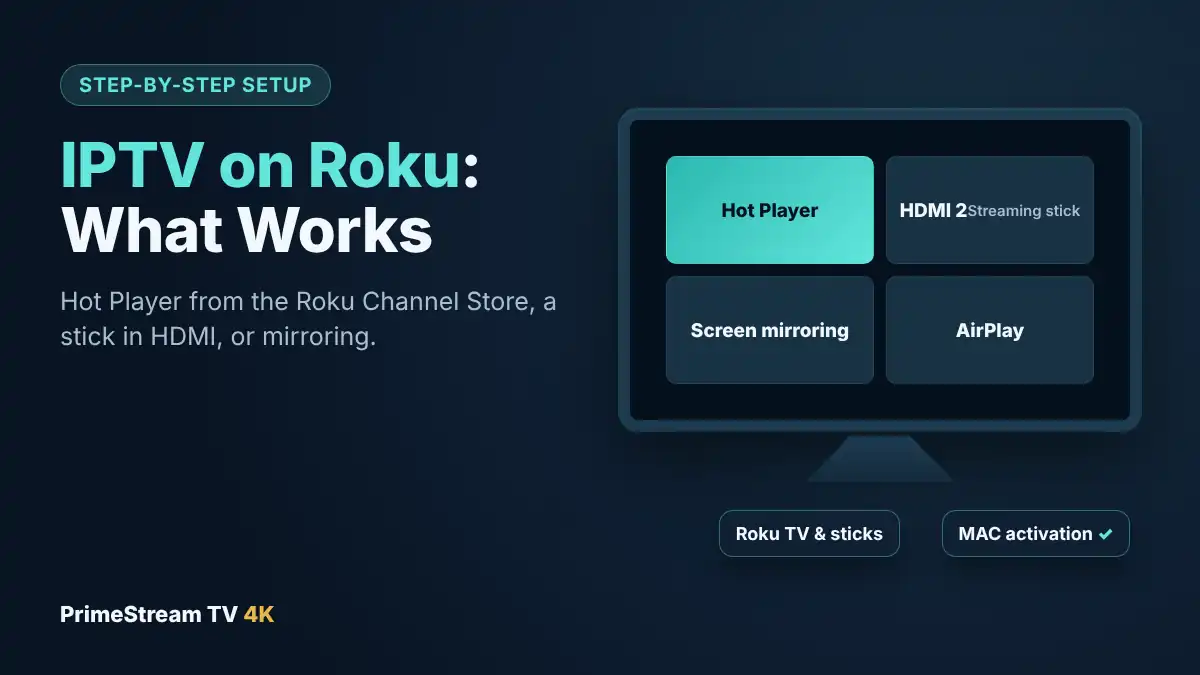
Here are the four methods that work, compared side by side:
| Method | Extra hardware | TV guide | Best for |
|---|---|---|---|
| Hot Player app on Roku | None | Yes | The simplest setup on any Roku |
| Fire TV Stick or Google TV Streamer in the HDMI port | A streaming device | Yes, full grid with TiviMate | The best experience and most app choice |
| Screen mirroring (Android, Windows) | Phone, tablet or PC | On the phone | Occasional viewing |
| AirPlay (iPhone, iPad, Mac) | Apple device | On the phone | Apple households with a supported Roku |
For most homes we recommend starting with Hot Player, because it needs nothing extra. If you watch a lot of live sport or want a cable-style guide, the HDMI stick method is worth the small extra cost.
3. Method 1: Hot Player From the Roku Channel Store
Hot Player is an IPTV player published in the official Roku Channel Store. Like most smart TV players, it does not ask you to type a long playlist link with the remote. Instead, it shows a MAC address, and your provider links your playlist to it.
How to install Hot Player on Roku
- Press the Home button on your Roku remote.
- Open Search and type “Hot Player”, or browse the streaming store from the home screen.
- Select Hot Player and choose Add channel. Enter your Roku PIN if asked.
- Open Hot Player from your home screen. It shows a MAC address (and sometimes a device key) on the first screen.
- Take a photo of that screen and send it to us on WhatsApp.
- We link your subscription to the app. Close Hot Player and open it again, and your live channels, movies and series appear.
Hot Player, like other MAC-based players, asks for a paid activation after its trial period. With our paid plans, the player license is included: we activate it for you at no extra cost. During a free 24-hour trial, we help you set it up the same way.
Hot Player tips
- Add your most-watched channels to favorites so the Roku remote is enough to switch quickly.
- If the guide is empty, give it a few minutes to load after the first start, then reopen the app.
- Keep the Roku software up to date in Settings, System, System update.
4. Method 2: Add a Fire TV Stick or Google TV Streamer
This is the method we recommend for the best IPTV on Roku TVs, even though it sounds like a workaround. A Roku TV is still a normal TV with HDMI ports. Plug a Fire TV Stick or Google TV Streamer into a free HDMI port, switch the input, and you have access to every major IPTV player, including TiviMate with its cable-style guide, recording and multi-view.
- Plug the streaming device into a free HDMI port on the Roku TV and connect its power adapter.
- On the Roku TV home screen, select the HDMI input tile for that port. You can rename it, for example “Live TV”.
- Set up the device, install TiviMate or IPTV Smarters Pro and add your login.
Many Roku TVs support HDMI-CEC, so the stick’s remote can turn the TV on and switch inputs automatically. Our IPTV on Firestick guide and TiviMate setup guide walk through the rest. Not sure which device to buy? Our guide to the best IPTV box compares the options, including a warning about new Fire TV Sticks that run Vega OS and cannot install most IPTV players.
5. Method 3: Screen Mirroring From Android or Windows
Many Roku models can mirror the screen of an Android phone or tablet or a Windows PC. You run an IPTV app on the phone or computer, and the Roku shows the picture on your TV.
- On the Roku, open Settings, then System, then Screen mirroring, and set the mode to Prompt or Always allow.
- On Android, open the quick settings panel and choose Smart View, Cast or Screen mirroring (the name depends on the phone maker). On Windows, press Windows key + K.
- Select your Roku from the list and accept the request on the TV.
- Open your IPTV app, such as IPTV Smarters Pro, on the phone or PC and start a channel.
Limits: the phone or PC must stay on and connected the whole time, the picture quality depends on your Wi-Fi, and calls or notifications can interrupt the stream. Mirroring is fine for a movie or an occasional game, but it is not a good everyday replacement for cable.
6. Method 4: AirPlay From iPhone, iPad or Mac
Many recent Roku devices and Roku TVs support Apple AirPlay. If yours does, you can send video from an IPTV app on your iPhone, iPad or Mac to the TV.
- On the Roku, open Settings, then Apple AirPlay and HomeKit, and make sure AirPlay is on. If you do not see this menu, your model does not support AirPlay.
- Connect your Apple device to the same Wi-Fi network as the Roku.
- Open an IPTV player such as Hot Player or IBO Pro Player on the iPhone or iPad, start a channel and tap the AirPlay icon. If the app has no AirPlay button, use Screen Mirroring from Control Center instead.
As with Android mirroring, the phone has to stay nearby and connected. Our best IPTV player guide lists the apps that work best on Apple devices.
7. What to Avoid on Roku
- Developer mode sideloading. Roku has a developer mode for app makers to test their own channels. Using it to install unofficial IPTV channels goes against Roku’s developer terms, the apps do not update, and Roku can disable developer mode on your device.
- “Free IPTV” private channels. Channels shared with an access code that promise free live TV usually carry unlicensed streams that disappear without warning, and they come with no support.
- Typing long playlists with the remote. If an app asks for a long M3U link, use a MAC-based player like Hot Player instead, or ask us to set it up with you.
8. Tips for Smooth IPTV on a Roku TV
- Use Ethernet when you can. Most Roku TVs and the Roku Ultra have an Ethernet port. A wired connection is the most reliable way to avoid buffering during live sport.
- On Wi-Fi, use the 5 GHz band and keep the router close to the TV.
- Check your speed. Plan on about 25 Mbps for each 4K screen and 10 to 15 Mbps for each HD screen watching at the same time.
- Restart weekly. Settings, System, Power, System restart clears memory on older Roku models.
- Count your screens. Each TV watching at the same time needs its own connection. Our IPTV plans start at $14 a month for one device, with multi-device plans for 2 to 5 screens.
If you watch mostly sport, our IPTV sports guide has more tips for game day.
9. IPTV on Roku Not Working: Quick Fixes
| Problem | Likely cause | What to try |
|---|---|---|
| Hot Player shows no channels | Playlist not yet linked to the MAC address | Send us a photo of the MAC screen, then close and reopen the app |
| “Expired” or activation message | App trial ended | Message us; the player license is included with paid plans |
| Buffering at night | Weak Wi-Fi or busy network | Use Ethernet or 5 GHz, restart the Roku and router |
| Roku not found for mirroring | Different Wi-Fi network or mirroring off | Join the same network, check Settings, System, Screen mirroring |
| No AirPlay menu | Model does not support AirPlay | Use Hot Player on the Roku or plug in a streaming stick |
| Guide times look wrong | Time zone setting | Check the Roku time zone in Settings, System, Time |
Still stuck? Our support team answers on WhatsApp 24/7. Send a photo of the screen and your Roku model, and if something on our side is not working, we fix it or replace your access.
10. Frequently Asked Questions
Can you get IPTV on Roku?
Yes. Install Hot Player from the Roku Channel Store and have your provider link your playlist to the MAC address it shows, or plug a Fire TV Stick or Google TV Streamer into the Roku TV’s HDMI port.
Is TiviMate available on Roku?
No. TiviMate runs only on Android TV, Google TV and Fire TV devices. To use it with a Roku TV, plug a Fire TV Stick or Google TV Streamer into a free HDMI port.
Is IPTV Smarters Pro on Roku?
No, it is not in the Roku Channel Store. You can run it on an Android phone or Windows PC and mirror the screen to the Roku, or use Hot Player directly on the Roku.
What is the best IPTV app for Roku?
Hot Player is the most practical IPTV app installed directly on Roku. For a full cable-style guide, TiviMate on a streaming stick plugged into the Roku TV gives the best experience.
Should I sideload IPTV apps on Roku?
No. Developer mode is meant for app makers testing their own channels. Sideloading unofficial IPTV channels goes against Roku’s terms, and Roku can disable developer mode on your device.
Does Roku support screen mirroring?
Many Roku models support mirroring from Android and Windows, and many recent models support AirPlay from iPhone, iPad and Mac. Check Settings, System, Screen mirroring and the Apple AirPlay menu on your Roku.
Do I need to pay for Hot Player?
Hot Player asks for an activation after its trial. With our paid plans, the player license is included and we activate it for you.
Can I try IPTV on my Roku for free?
Yes. Our free 24-hour trial works with Hot Player on Roku, and we help you set it up on WhatsApp.
11. Conclusion
IPTV on Roku is easier than most people think. Install Hot Player from the Roku Channel Store and send us the MAC address for the simplest setup, or plug a Fire TV Stick or Google TV Streamer into the Roku TV if you want TiviMate and a full cable-style guide. Mirroring from a phone works for occasional viewing, but skip developer mode and “free” private channels. Ready to see it on your own TV? Request your free 24-hour trial, test a live game at peak time, and then choose one of our IPTV plans with the player license included.