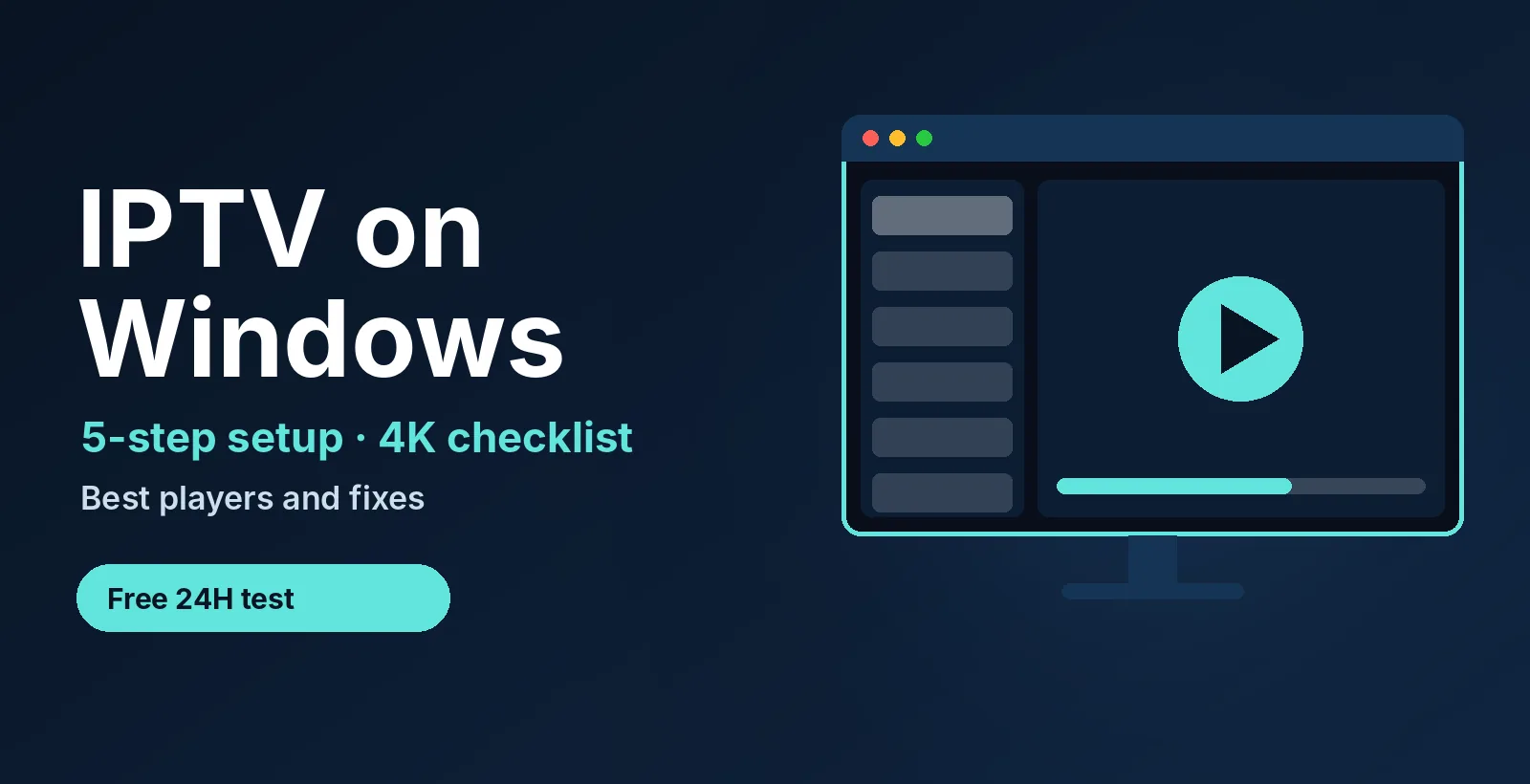
Want IPTV on Windows that works first time? Get a free 24-hour test login with an M3U link, Xtream details and a guide link. No credit card. See plans from $14/month →
- You need: a player app plus an Xtream login or an M3U link.
- Time: about 5 minutes with the login ready.
- Works on: Windows 10 and Windows 11, laptop or desktop.
- Biggest hidden limit for 4K: video decoding on your PC, not only internet speed. See the 4K checklist in section 5.
1. What Is IPTV on Windows?
IPTV on Windows means watching live channels, movies and series on a PC through an IPTV player app. The app is only the player. Your provider supplies the content as an Xtream Codes login (server, username, password) or an M3U playlist link.
A Windows PC is the easiest place to test a new login, because you can paste a link, see the channel list at once and read error messages. If you use a TV device instead, read IPTV on Android TV or IPTV on Firestick.
2. How to Set Up IPTV on Windows in 5 Steps
- Connect with a cable if you can. Plug the PC into the router with Ethernet for the first test. It rules out Wi-Fi problems early.
- Install one player. Open the Microsoft Store and install an IPTV player, or download VLC from videolan.org. Install only one player for now.
- Add your login. In a Store player choose Xtream Codes and enter the server address, username and password, or paste your M3U link. In VLC open Media, then Open Network Stream, and paste the M3U link.
- Add the guide. Paste the XMLTV (EPG) link if your provider gave you one. Channels still play without it, but the schedule stays empty.
- Wait for the sync and test. Large lists need a minute to load channels and logos. Open a channel and watch for a few minutes.
If the list stays empty, jump to section 8 or read IPTV M3U not working. For the file basics, see our M3U playlist guide.
3. What Is the Best IPTV Player for Windows?
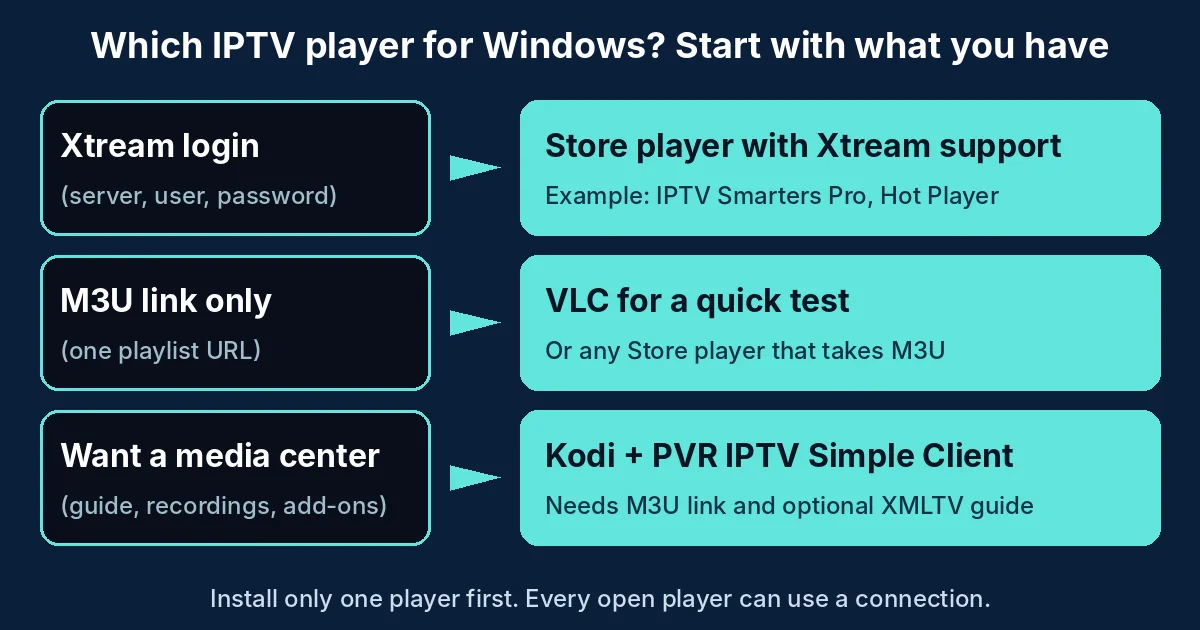
There is no single best IPTV player for Windows. The right one depends on what your provider gave you and how much you want the player to do. Start from your login type:
| Player | Best for | Login it takes | Guide |
|---|---|---|---|
| Microsoft Store player (for example IPTV Smarters Pro, Hot Player or IBO Player Pro) | A clean channel list with live TV, movies and series | Xtream Codes or M3U, depending on the app | Smarters Pro setup |
| VLC | A fast test of an M3U link, free and open source | M3U link or single stream URL | IPTV on VLC |
| Kodi with PVR IPTV Simple Client | A media center with a guide and recordings | M3U link plus optional XMLTV | IPTV on Kodi |
Compare more options in best IPTV player apps. The Store has many apps with near-identical names, so check the publisher and the reviews before you install, and do not log in on several players at once, because every open player can use one of your connections.
4. IPTV on Windows 10, Windows 11 and Windows 7
Windows 10 and Windows 11 run the same IPTV players, so the steps above are identical. The difference is support. Microsoft ended support for Windows 10 on October 14, 2025, so a new setup is better on Windows 11 when your PC allows it.
Windows 7 is a special case. It has no Microsoft Store, so Store players are not an option there. VLC is the simplest choice, but an old system is a weak base for 4K streams.
Need an Xtream login or M3U link for IPTV on Windows? Ask for a free 24-hour login and we send the details.
5. The 4K Checklist for IPTV on a PC
Most guides to IPTV on Windows stop at the install. On a PC, 4K problems often come from video decoding, not from the playlist. A 4K IPTV channel often needs about 20 Mbps, so first check your speed with the formula from our IPTV 4K guide: speed x 0.75, divided by 20, rounded down. Then walk through this table.
| Check | Why it matters | What to do |
|---|---|---|
| Graphics driver | Smooth 4K playback relies on the graphics card decoder | Update the driver from your PC or graphics card maker |
| Hardware decoding | Software decoding of 4K can overload the CPU | In VLC, open Tools, Preferences, Input / Codecs and try the hardware-accelerated decoding option (names vary by version) |
| HEVC support | Many 4K channels use HEVC (H.265) | If a Store player shows a black screen with sound, check whether Windows needs the HEVC Video Extensions from the Microsoft Store |
| Windows N edition | N editions ship without some media features | Install Microsoft’s Media Feature Pack if your edition is an N edition |
| Power plan | A low-power mode can throttle the CPU on laptops | Plug in the laptop and choose a balanced or high-performance plan |
| Display link | A weak cable or wrong refresh rate can cause stutter | Use a good HDMI cable and set the display to its normal refresh rate |
Change one item at a time and test the same channel after each change. That is the only way to know which fix worked.
6. Is a Windows IPTV App Safe to Download?
It can be, if you choose the source carefully. Searches such as “iptv windows download” and “iptv windows github” lead to many places, and not all are safe. Use this order:
- Microsoft Store first. Store apps are installed and updated through Windows.
- The official site of the player. For VLC, that is videolan.org.
- Never a random .exe file. Skip “cracked” or “pro unlocked” installers. They are a common way to spread malware.
A free player still needs a playlist or login from a provider, so a free app is not the same as free channels. Our guide to free IPTV apps vs free trials explains the difference.
7. Is IPTV Legal in the USA?
IPTV technology is legal. What matters is whether the channels you watch are licensed for you and whether the source is authorized. Use only playlists you are allowed to watch. Our IPTV legality guide explains what to check. This is general information, not legal advice.
8. Why IPTV on Windows Is Not Working
| Symptom | Likely cause | Fix |
|---|---|---|
| Login fails or the list is empty | Typo in server, username or password, or an expired login | Re-enter the details with no spaces; ask your provider to check the account |
| Channels load, guide is empty | No guide link or IDs do not match | Add the XMLTV link; refresh the guide in the app |
| Plays, then stops | Login used on too many devices | Close other players and other devices on the same login |
| Black screen with sound | Missing video codec for HEVC | Check the HEVC and N edition rows in section 5 |
| Buffering or freezing | Weak Wi-Fi, low speed or decoding load | Use Ethernet; check the stream math; turn on hardware decoding |
| Store app will not open | Outdated app or Windows update pending | Update the app in the Store and restart the PC |
More fixes that apply to every device are in IPTV not working: 7 fixes.
9. A 24-Hour Test Plan for IPTV on Windows
- Right away: the login works and the channel list loads in under a minute.
- Same hour: the guide fills in and your must-have channels play.
- Evening peak: watch one live channel for 30 minutes on Ethernet, then on Wi-Fi.
- 4K check: open one 4K channel and watch the CPU in Task Manager. A steady low load means decoding works.
- Two screens: open two channels at once to test the connection limit.
- Before it ends: message support and see how fast a person replies.
The full checklist is in our IPTV free trial guide.
10. Frequently Asked Questions
How do I watch IPTV on Windows?
Install an IPTV player on your PC, such as a Microsoft Store app or VLC, then enter your provider’s Xtream Codes login or M3U link. Add the guide (EPG) link if you have one and wait for the channels to load.
What is the best IPTV player for Windows?
It depends on your login. Use a Store player with Xtream support if you have a username and password, VLC for a quick M3U test, or Kodi if you want a full media center with a guide.
Is there a free IPTV player for Windows?
Yes. VLC and Kodi are free and open source, and many Microsoft Store players are free to install. A free player still needs a playlist or login from a provider, so a free app is not the same as free channels.
Does IPTV work on Windows 10 and Windows 11?
Yes. The same players run on both. Windows 10 reached its end of support on October 14, 2025, so Windows 11 is the safer choice for new setups.
Can I use IPTV on Windows 7?
Windows 7 has no Microsoft Store, so Store players are not an option. VLC is the simplest choice there, but an old system is a poor base for 4K streams.
Why does IPTV buffer on my PC?
The usual causes are Wi-Fi, too little internet speed for 4K, hardware decoding turned off, or the same login open on another device. Try an Ethernet cable first, then check the 4K checklist in this guide.
Is IPTV legal in the USA?
The technology is legal. Legality depends on whether the content is licensed and the source is authorized, so use only playlists you are allowed to watch.
11. Conclusion
IPTV on Windows takes five minutes: install one player, enter your Xtream login or M3U link, add the guide and test on a cable. For 4K, work through the decoding checklist before you blame the playlist. Start your free 24-hour trial, then compare plans from $14/month. For more, read the IPTV subscription guide and IPTV on Smart TV.
Ready to try IPTV on Windows? Message us for your free 24-hour login.
Start your free 24h trial
No credit card. We reply with your trial login.