Configure Smart IPTV on Samsung and LG Smart TV with this clear step-by-step tutorial.
Smart IPTV is a media player that can organize live television, movies, series, and guide information from an authorized IPTV subscription. The player does not supply content itself; you must add valid access details from a service you are permitted to use.
Want IPTV that works on your TV? Ask us on WhatsApp or request the free 24-hour trial. See plans from $14/month →
Before you begin
Prepare a stable internet connection, your device, and the login information or M3U playlist supplied for your subscription. Confirm that your plan includes enough simultaneous connections for the devices you intend to use. For another player option, see our guide to the Smarters app on Samsung TVs. LG owners can also read our IPTV on LG TV guide, and you can compare other apps in our best IPTV player roundup.
How to configure Smart IPTV
- Install Smart IPTV where it is officially available for your television model.
- Open the application and note the MAC address displayed by the player.
- Visit the official playlist-management page and upload your authorized M3U address against that MAC address.
- Restart the app, confirm the playlist loads, and test several categories and EPG entries.
Recommended settings
- Check TV compatibility first
- Use the exact MAC address
- Upload only authorized playlists
- Remove outdated playlists before adding a replacement
Smart IPTV setup at a glance
| Topic | What to know |
|---|---|
| What you need | Stable internet, your TV, and the login details or M3U playlist from your subscription |
| Install | Only where Smart IPTV is officially available for your TV model |
| Key identifier | The MAC address shown in the app |
| Playlist upload | Authorized M3U address, uploaded against that MAC address on the official playlist-management page |
| Final check | Restart the app and test several categories and EPG entries |
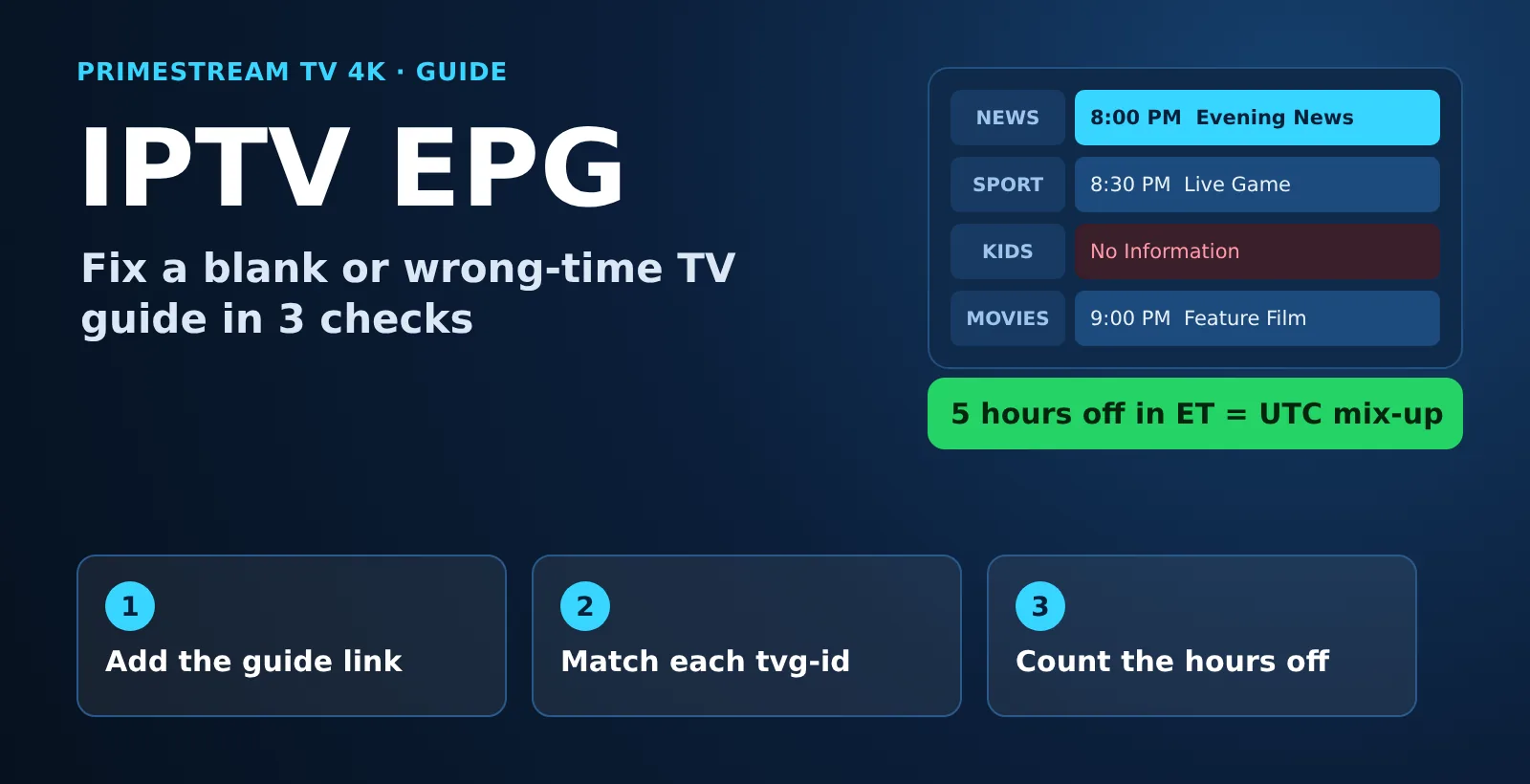
| Content does not load | Verify credentials and connection, refresh playlist and EPG, restart the player, test another stream |
Troubleshooting playback
If content does not load, first verify the credentials and internet connection. Refresh the playlist and EPG, restart the player, and test another stream. Avoid changing several advanced settings at once because this makes the cause harder to identify. For more fixes, see our guide on what to do when IPTV is not working.
Not sure yet? Request the free 24-hour test by form and try it on your own device tonight.
Frequently Asked Questions
What is Smart IPTV?
Smart IPTV is a media player that organizes live television, movies, series, and guide information from an authorized IPTV subscription. It does not supply content itself, so you must add valid access details from a service you are permitted to use.
What do I need before setting it up?
You need a stable internet connection, your device, and the login information or M3U playlist supplied for your subscription. Also confirm that your plan includes enough simultaneous connections for the devices you plan to use.
How do I set up Smart IPTV on a Samsung or LG TV?
Install the app where it is officially available, note the MAC address it displays, and upload your authorized M3U address against that MAC address. Then restart the app and test several categories and EPG entries.
Why does the MAC address matter?
Your playlist is uploaded against the MAC address shown by the player, so it must be exact. A mistake in the MAC address means the app will not receive the playlist you uploaded.
What should I do if content does not load?
First verify your credentials and internet connection. Then refresh the playlist and EPG, restart the player, and test another stream, changing only one setting at a time.
Should I keep old playlists in Smart IPTV?
No, remove outdated playlists before adding a replacement. Upload only authorized playlists.
Ready to start? Message us on WhatsApp and we help you pick the right plan and set it up.
Need a compatible subscription?
Return to the PrimeStreamTV4K homepage to review plans, compare durations, and request a 24-hour compatibility trial.
Before you subscribe, see our IPTV provider checklist to make sure your service ticks every box, or start a free trial to test channels on this device first.