IPTV not working? This 2026 troubleshooting guide helps you diagnose buffering, black screens, login failures, missing channels, and app crashes on Firestick, Roku, Samsung, LG, and other supported devices.
IPTV not working? Start with this 60-second diagnosis
Quick answer: If IPTV is not working, first test your internet connection and another authorized stream. Then restart the player and device, update the app, check your account or playlist details, and contact your provider if the source is unavailable. The correct fix depends on whether you see buffering, a black screen, login errors, or missing channels.
IPTV is a delivery method, not a guarantee of content rights. Use only services authorized to distribute the channels you watch. If you’re new to the technology, start with what IPTV is and how it works.
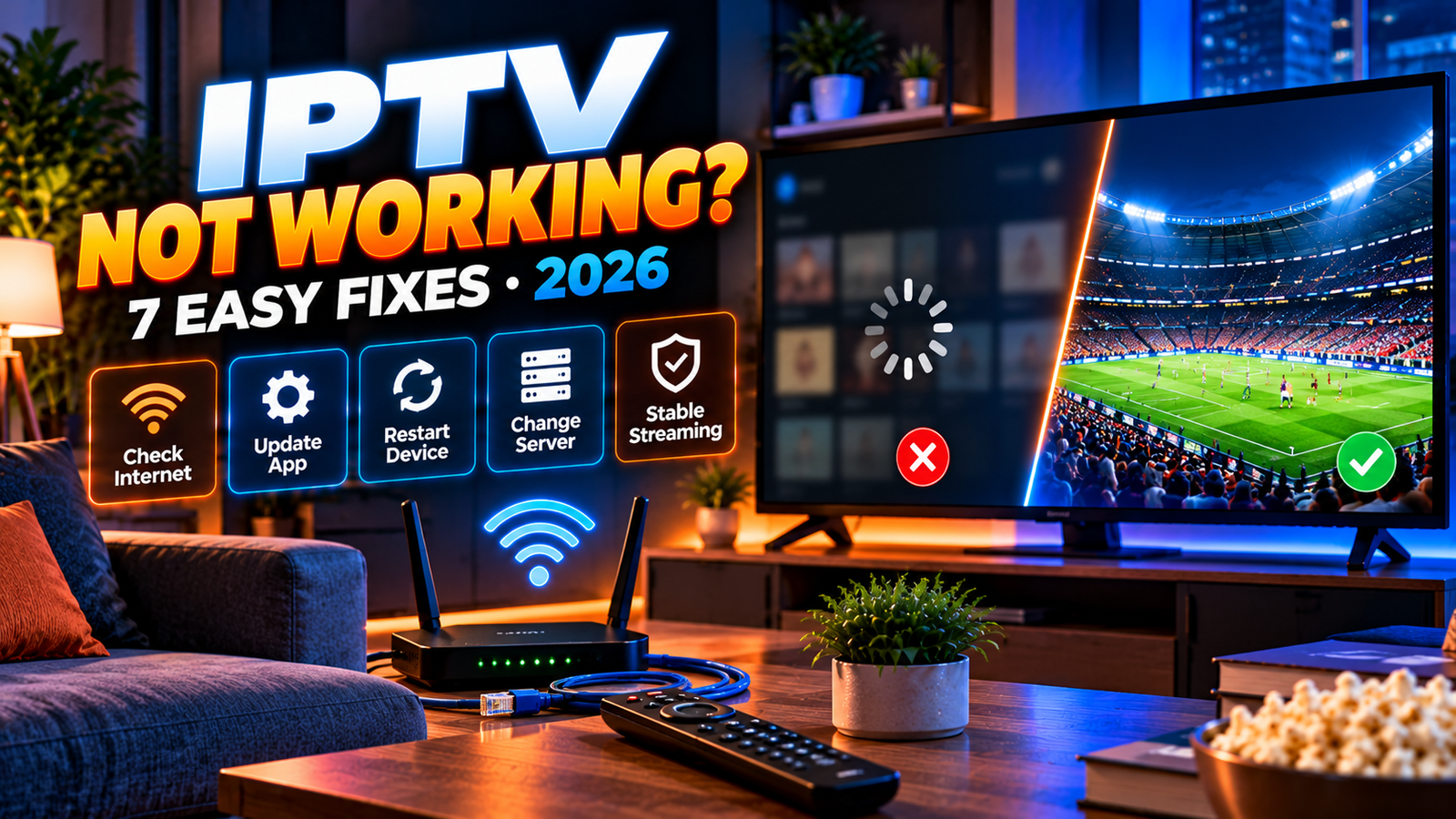
7 easy fixes when IPTV stops working
1. Check whether your internet is actually working
Open another app or website on the same device. If it also fails, restart your router and check your internet service provider’s status. If possible, try an Ethernet connection.
2. Restart the IPTV app and streaming device
Fully close the app rather than simply returning to the home screen. Restart the Fire TV, Android TV, smart TV, or computer, then try again.
3. Update the app and operating system
Install updates from official sources. An outdated player may struggle with newer streaming formats or authentication methods. Compare trusted options in our IPTV player app guide.
4. Verify your subscription and login details
Check that your authorized account is active and that the username, password, and server address are entered correctly. Avoid sharing credentials in public screenshots.
5. Check the playlist or stream source
When only one channel fails, the issue may be upstream rather than on your device. If an M3U list is involved, use our focused guide to fix an IPTV M3U playlist that is not working.
6. Improve Wi-Fi or switch to Ethernet
Move closer to the router, reduce competing downloads, or test a wired connection. A strong speed-test result does not rule out packet loss or Wi-Fi interference.
7. Contact support with useful details
Provide your device model, app version, approximate time, error message, and whether all channels or only one fail. Do not send passwords or full private playlist URLs.
Want to test streaming on your device before choosing a plan?
Ask on WhatsAppRequest a trial using the formView Plans & Pricing
WhatsApp not opening? Use the request form instead.
Match the symptom to the likely cause
| What you see | Common causes | Best first action |
|---|---|---|
| Constant buffering | Congestion, weak Wi-Fi, source capacity | Test Ethernet and another authorized stream |
| Black screen | App or decoding issue, unavailable stream | Restart and update the player |
| Login failed | Incorrect details or inactive account | Check credentials privately |
| Channels missing | Playlist or package changes | Refresh the authorized playlist |
| App crashes | Old app, low storage, device issue | Update and free storage |
| Only live sports lag | Peak-time load or source performance | Compare other channels and times |
Not sure which player to use? Compare the TiviMate guide, IPTV Smarters Pro, IPTV on VLC or IPTV on Windows. Using a TV directly? See IPTV on Smart TV.
Why IPTV keeps buffering even with fast internet
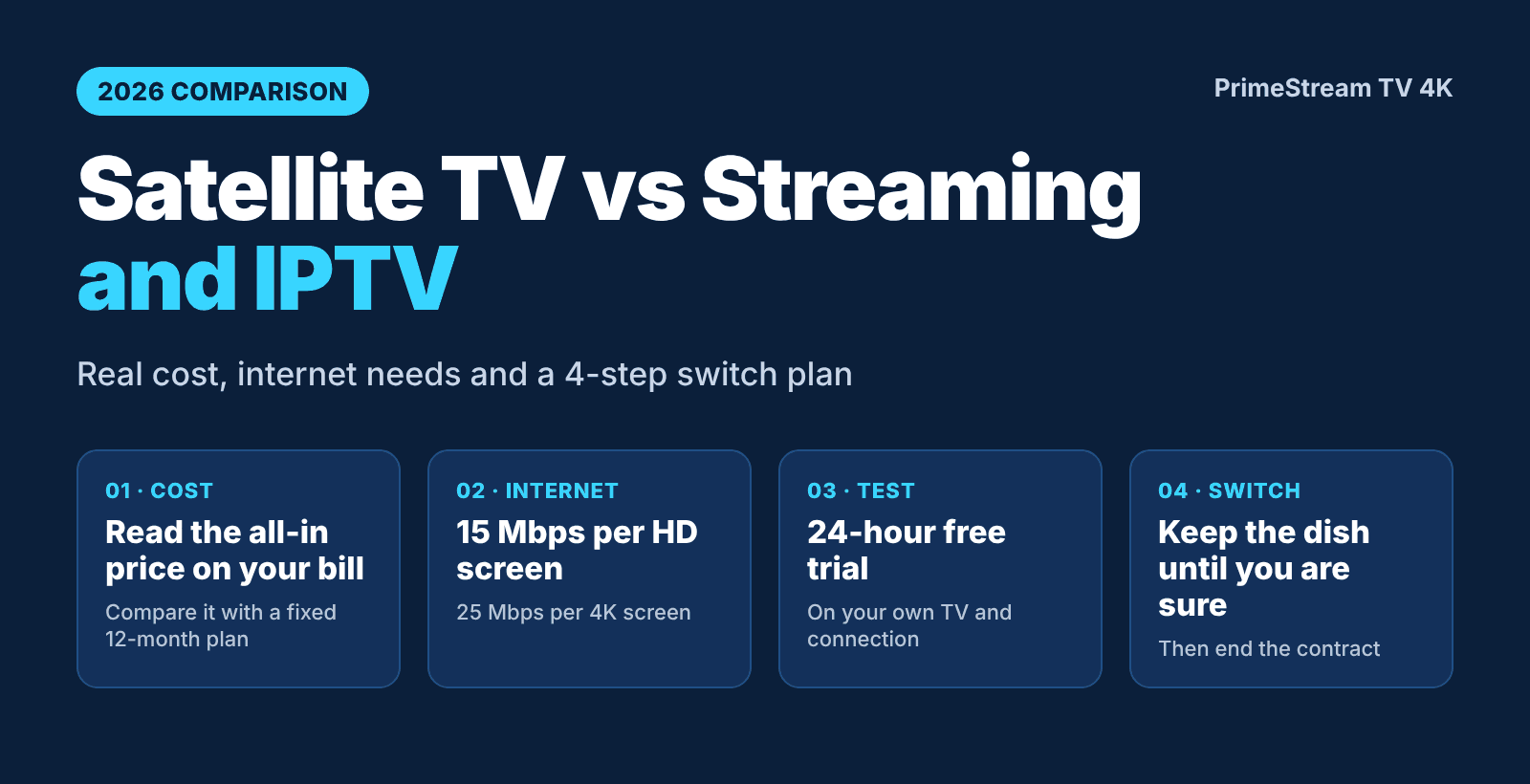
Bandwidth is only one part of the experience. Live streams are sensitive to unstable Wi-Fi, packet loss, overloaded servers, outdated devices, and player settings. As a rough planning guide, some HD streams work with around 5–10 Mbps while 4K services may recommend 25 Mbps or more per stream; actual requirements vary by codec and provider.
If several people stream or download at the same time, leave headroom. Learn more about display resolution and device requirements in our IPTV 4K guide.
If IPTV fails only on your home connection and works on mobile data, your internet provider’s network or security filter may be involved. Our guide to ISPs blocking IPTV has a 3-test check that shows whether the problem is your home network or the service.
Device-specific troubleshooting: Firestick, Roku, Samsung, LG
Fire TV Stick
Check available storage, app updates, power supply, and Wi-Fi strength. For general setup, see IPTV on Firestick. If you use Smarters, see IPTV Smarters on Firestick.
Roku
Roku supports a different app ecosystem from Android-based devices. Check whether your provider has an authorized Roku-compatible option. Read IPTV on Roku: what works.
Samsung Smart TV
Confirm the TV model, Tizen version, and app availability. If your player cannot be updated, consider a compatible external device. See IPTV Smarters on Samsung TV.
LG Smart TV
Verify webOS support, network settings, and app updates. Our LG TV IPTV setup guide covers the device-specific steps.
When the playlist works but channels do not load
Sometimes a playlist opens and displays channel names, yet playback fails. That does not necessarily mean the playlist file is broken. The stream endpoint may be unavailable, access may have expired, or the app may not support the stream format.
- Check whether multiple channels fail or only one.
- Verify your account status with the authorized provider.
- Test the supported player version.
- Refresh the list through the official method.
- Ask support to verify source availability.
For playlist format basics, read what an M3U playlist is.
Should you reset the app or reinstall it?
Try a regular restart and update first. Clearing cache can help some apps, but clearing app data or reinstalling may delete playlists, favorites, and settings. Back up anything you are authorized to retain before resetting. Do not download modified apps or disable security protections to fix playback.
If the app still fails, test a different officially supported player rather than repeatedly reinstalling the same version.
How to test an IPTV service before paying
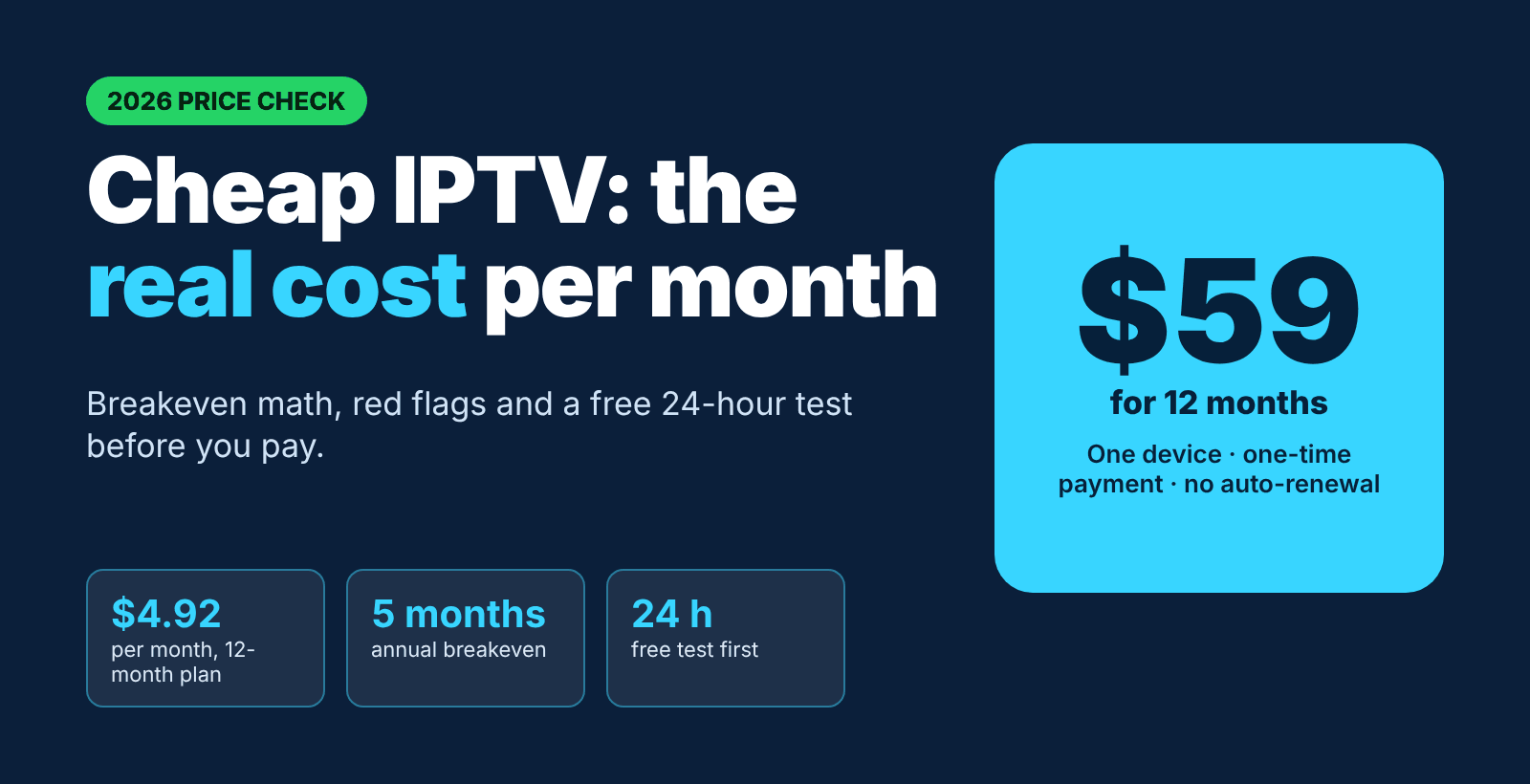
A short trial can reveal compatibility issues, but one successful test does not guarantee uninterrupted service. Test the same device you plan to use, check several authorized channels, compare daytime and evening performance, and review cancellation terms.
See our 24-hour IPTV free trial checklist, compare current pricing, and read how to assess IPTV legality in the USA before subscribing. You can also compare every option on our IPTV plans page.
Frequently asked questions
Why is IPTV not working today?
It may be a local internet issue, an outdated app, an account problem, or a temporary source outage. Check other apps and channels before assuming the entire service is down.
Why does IPTV buffer when my internet is fast?
High download speed does not eliminate packet loss, Wi-Fi interference, source congestion, or player compatibility problems.
Why do I get a black screen but hear audio?
The player may have trouble decoding the video format. Update the app and check supported video settings.
Will a VPN fix IPTV buffering?
Not reliably. A VPN may add latency or reduce throughput. It also does not change whether a content source is licensed.
What if my M3U playlist does not load?
Check the format, access details, and source availability, then follow our dedicated M3U troubleshooting guide.
Can I request help without WhatsApp?
Yes. Use the website request form instead.
Bottom line
When IPTV stops working, identify whether the problem affects your device, internet connection, app, account, or stream source. Test one change at a time, keep software updated, and use authorized services. A structured diagnosis is more effective than repeatedly reinstalling the same app.
Want to test streaming on your device before choosing a plan?
Ask on WhatsAppRequest a trial using the formView Plans & Pricing
WhatsApp not opening? Use the request form instead.